Bot Designer – Design and Embed Chat Interface
The Bot Designer allows you to configure AI agents that can be embedded as chat widgets on websites. The Bot Designer is a visual editor for customizing the design, behavior, and embedding of the chat.
Quick Overview
- Create an AI agent
- Set access to Public
- Open the Bot Designer from the agent list
- Configure chat type
- Generate and insert embed code
Prerequisites
Requirements for Embedding
To embed an AI agent, the following prerequisites must be met:
- The AI agent is set to Public
- The corresponding Bot subscription is active
If the Public option is not available, the necessary subscription is missing and the agent cannot be embedded.
Opening the Bot Designer
The Bot Designer is accessed directly from the agent list:
- Open the Agent List :material-open-in-new:
- Click on the three-dot menu for the desired agent
- Select Embed
The Bot Designer opens in a separate view.
Chat Types in the Bot Designer
Three chat types are available in the Bot Designer. Each type is designed for different use cases and offers customized configuration options.
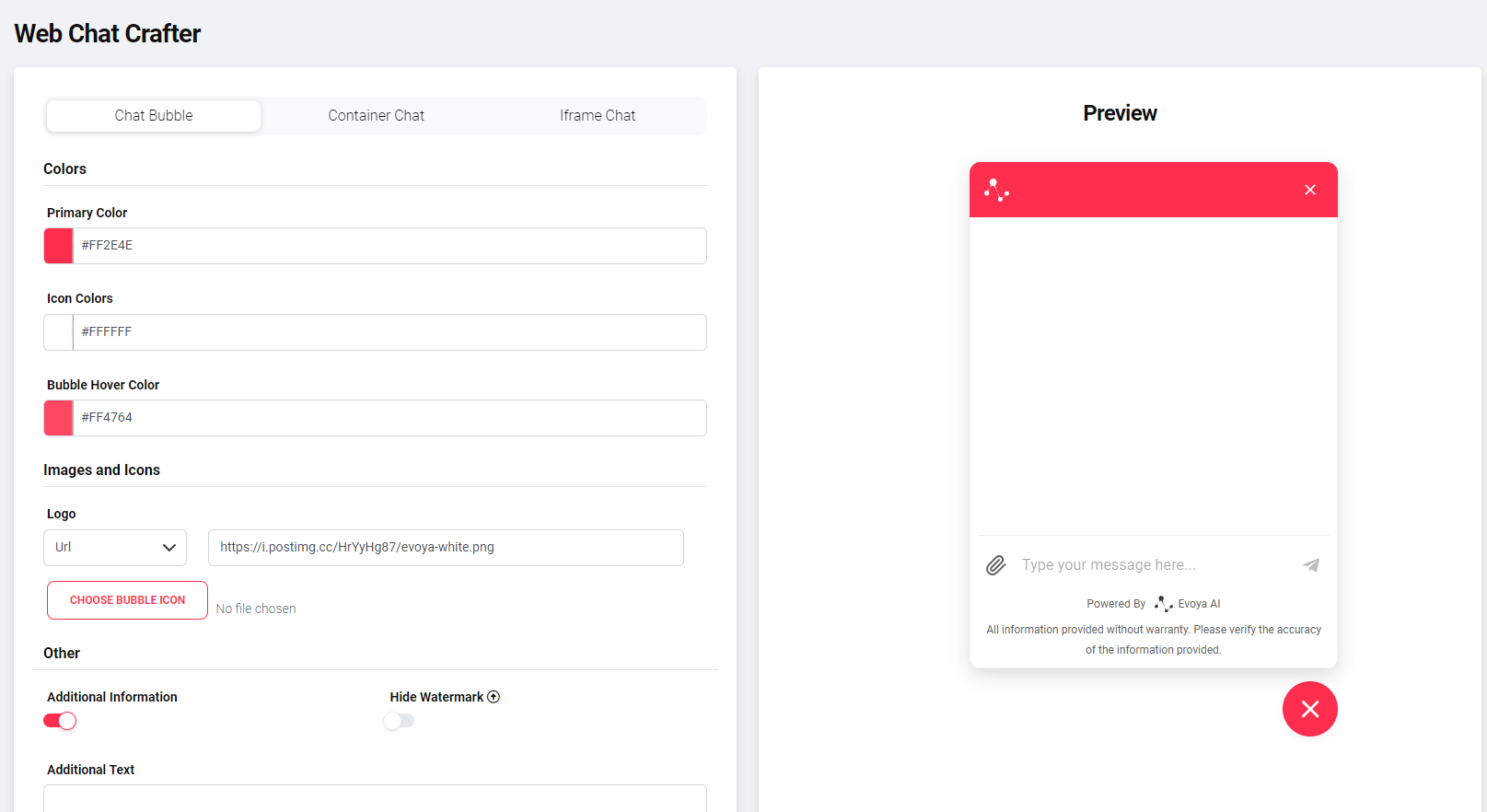
Chat Bubble
The Chat Bubble is a floating chat that appears on the edge of the website and opens upon interaction.
Typical use cases are websites where visitors should quickly and easily interact with an AI agent.
Configuration Options:
- Chat Bubble colors (primary color, icon color, hover color)
- Chat window size (width and height)
- Header with logo or text
- Additional notes below the input field e.g., liability disclaimers or references to privacy or security pages Optional with link
- Automatic opening of the Chat Bubble – separately for desktop and mobile – time-controlled
- Voice input (Speech-to-Text)
Payload Variables With the Chat Bubble, payload variables can be defined to pass additional context to the AI agent.
Enter variables in the format role=assistant&name=Claudius.
Examples:
- Passing the current page (
page=pricing) - Passing a campaign ID (
source=landingpage_2025) - Passing a language or region (
lang=en)
This information is available to the AI agent during the conversation.
Container Chat
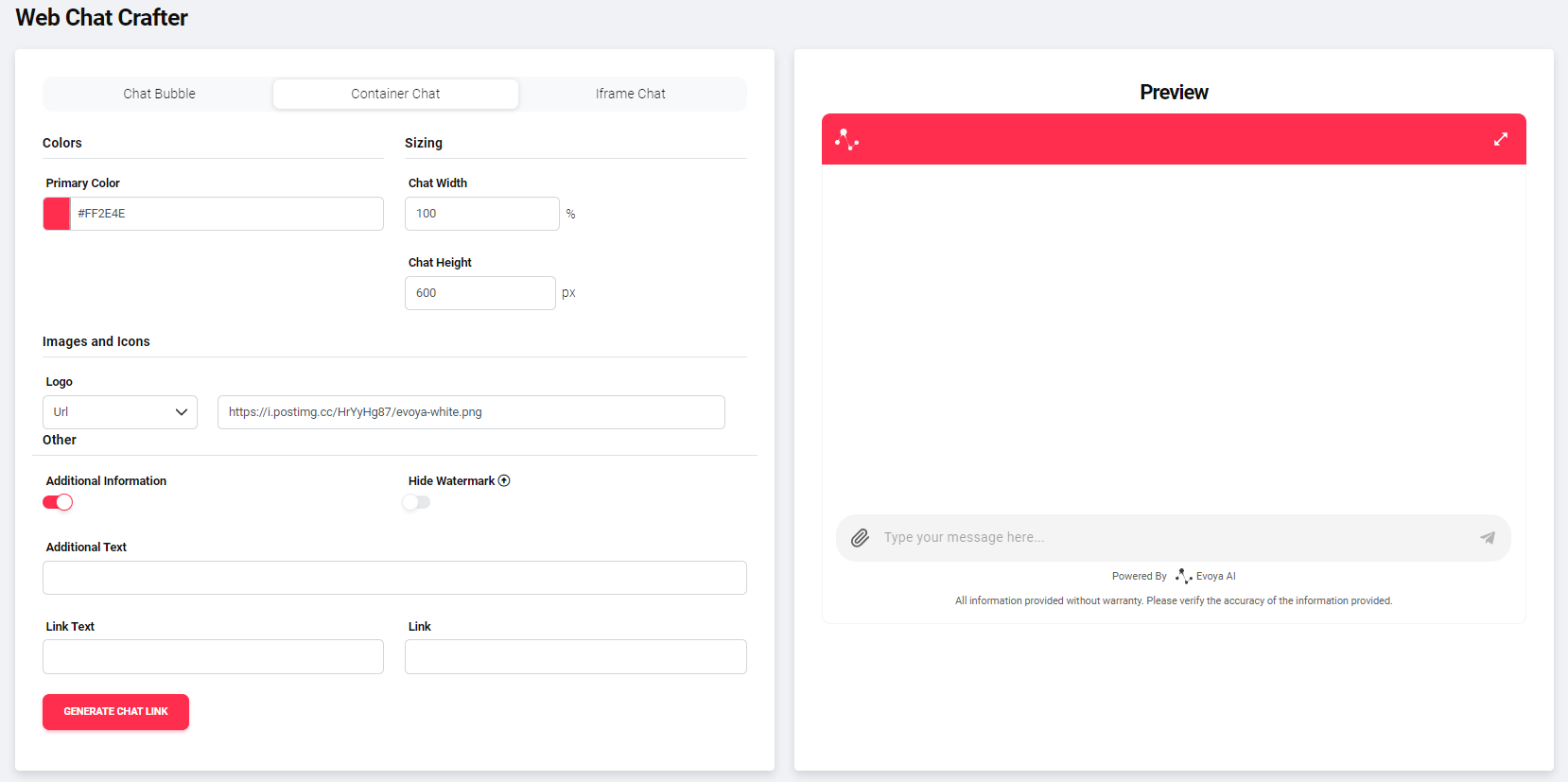
The Container Chat is a fixed embedded chat that is directly integrated into the page layout.
It is particularly suitable for pages with clearly defined content areas, such as landing pages or service pages.
Configuration Options:
- Primary color and icon color
- Width and height of the chat container
- Show or hide header
- Show or hide New Session button
- Header with logo or text
- Additional notes below the input field Optional with link
- Voice input (Speech-to-Text)
Payload Variables Payload variables can also be used with the Container Chat to pass contextual information.
Examples:
- Passing an area or product (
context=support) - Passing a tenant or customer (
tenant=customer_a)
iFrame Chat
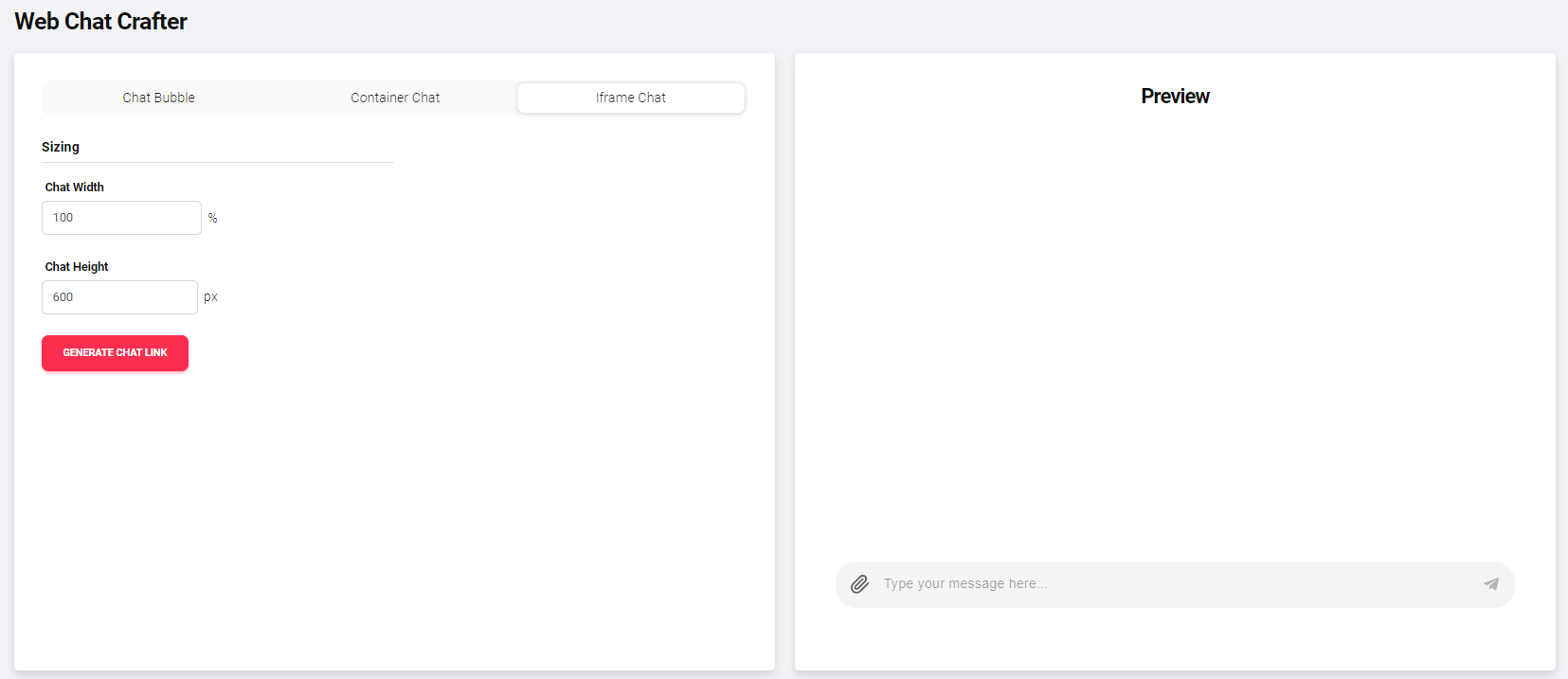
The iFrame Chat is the most minimal variant for embedding an AI agent.
It is suitable for simple integrations where only the chat itself should be embedded.
Configurable:
- Width
- Height
Payload variables and additional notes are not included with the iFrame Chat.
Generate Embed Code
After configuring the desired chat type:
- Click on Generate Embed Code
- Copy the generated code
- Insert the code at the desired location in your website's HTML source code
Note on Embed Code
The generated embed code is not saved. Changes in the Bot Designer require regeneration of the code.