Record, Transcribe and Process Conversations
Quick Overview
With Recordings, you can record conversations live or upload audio files, have them automatically transcribed, and process them directly. Transcripts and processing results can be edited, searched, and passed to AI agents for efficient further processing.
Typical workflow:
- Start recording or upload a file
- Wait for transcription and AI processing
- Review, edit, or search the transcript
- View, execute, or edit AI processing results
- Continue processing results in AI chat
Note
Google Chrome is required for recordings. Other browsers – especially Safari or iOS shortcuts – may cause recordings to not function correctly.
Browser Requirements
Google Chrome is mandatory for using recordings. Safari and other browsers are not supported and may cause malfunctions.
On Apple devices (iOS/iPadOS), home screen shortcuts always open web pages in Safari – even if they were originally created in Chrome. Opening the recording page via such shortcuts can therefore lead to technical issues.
Recommended Procedure:
- Manually open Google Chrome
- Access the recording page directly in the Chrome browser
- Save the page as a bookmark in Chrome
- Only open the recording page via these Chrome bookmarks
1. Open Recordings
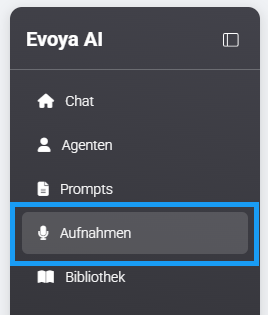
Click on Recordings in the side menu. You will be taken to the recordings overview, where all existing recordings are displayed with their status.
2. Start Recording
At the top right, you have two options: Record and Upload File.

2.1 Record
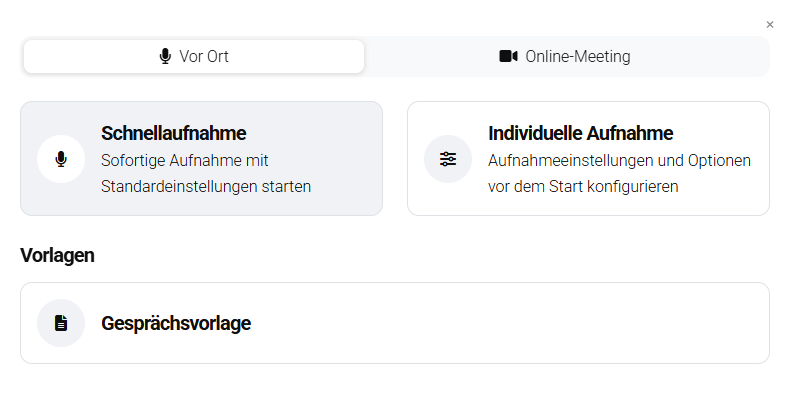
Starts a new live recording. After clicking the "Record" button, a pop-up opens with three options:
Access Types
The access type determines who can see and access a recording. For recordings, we distinguish between Private (visible only to the creator) and Team (all users in the workspace have access). A detailed explanation of access types can be found on the Access Types page.
Quick Recording
Quick recording is suitable for spontaneous conversations. Recording starts immediately without requiring prior configuration. The access type is automatically set to Private. After creating the recording, the access type can be manually adjusted at any time.
Custom Recording
With custom recording, you can define the title and description before starting for better content organization. The access type is also defined in advance, either Private or Team.
The language of the conversation is automatically detected by default but can be set manually. Participants can also be automatically detected or manually defined.
Processing options determine how the transcript is further processed. We distinguish between manual options that must be explicitly activated and standard options that are applied automatically.
Optionally, additional context for AI processing can be provided, such as the purpose or background of the conversation. This can improve the quality of results.
Templates
Templates contain preconfigured settings for recurring use cases. The access type depends on the configuration of the respective template. When starting the recording, both the configured processing and the defined access type are automatically applied.
2.2 Upload File
Allows uploading an existing audio file. The configuration corresponds to custom recording, supplemented with the file upload.

3. End Recording and Processing
During recording, Pause, Stop, and Cancel are available.
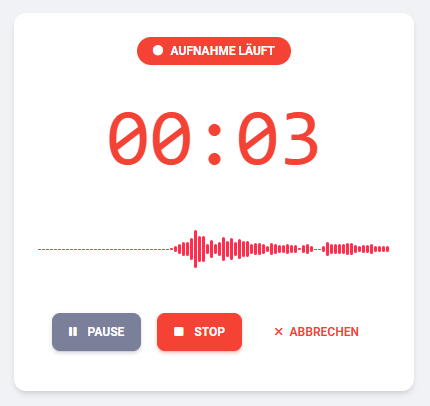
After clicking Stop:
- the recording is completed
- the conversation is transcribed
- the transcript is processed according to the selected options
4. Status and Overview
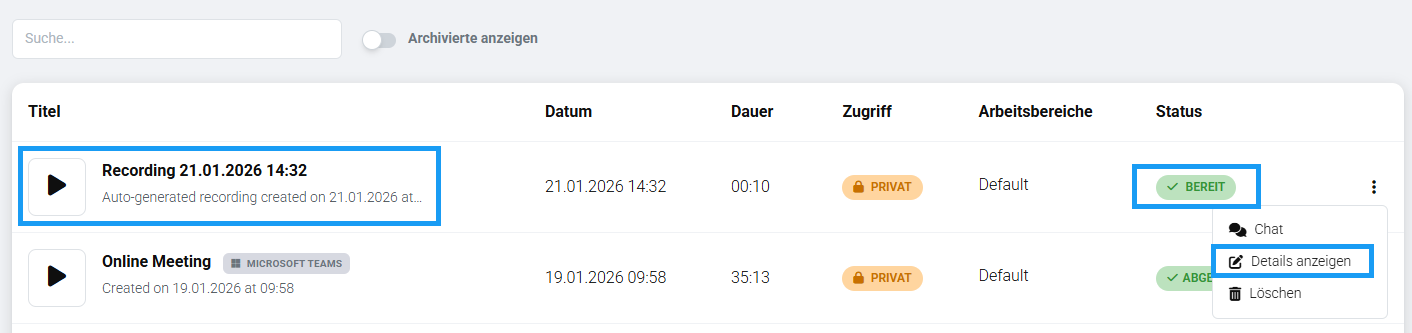
In the recordings overview, the status column shows the current state. Once all steps are completed, the status changes to Ready.
You can access the detail view:
- by clicking on the title, or
- via the three-dot menu → Show Details
5. Recording Detail View
The detail view is divided into three tabs: Details, Transcript, and AI Processing.
In the Details tab, the title (editable), start date and time, language, access type, and participants are displayed. On the right are the status and the Archive option.
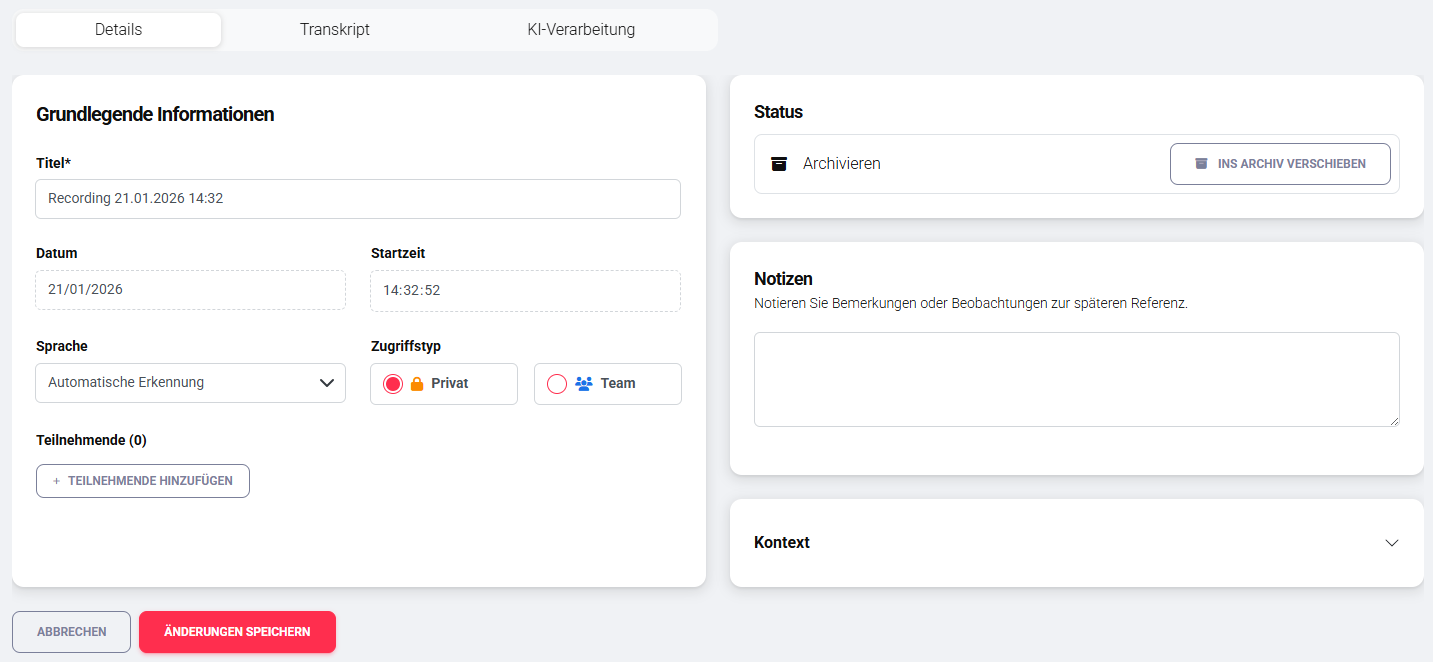
Archived recordings are no longer displayed in the standard list view. They can be shown again at any time using the filter option Show Archived. This is useful for organizing completed cases clearly.
6. Transcript
Edit Transcript
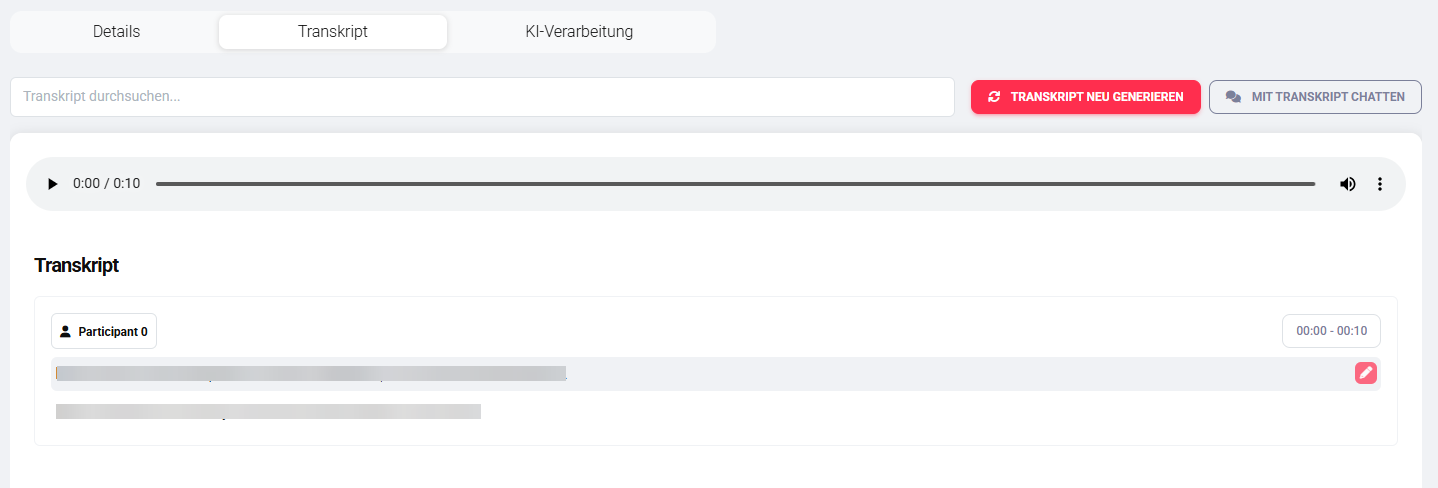
In the Transcript tab, the complete conversation is displayed as text together with the audio player. Play allows you to play back the conversation, with the currently spoken text automatically highlighted. Clicking on any text position moves the audio playback to the corresponding position.
For editing, hovering over a text position reveals an Edit button, through which manual adjustments can be made. The entire transcript can be searched using the search field. With the Regenerate Transcript function, the complete transcript can be recreated – this completely replaces the existing transcript.
Chat with Transcript
Via Chat with Transcript, the entire transcript is passed to an AI agent.
Process:
- Click the button
- Select an AI agent
- Transcript is copied into a new chat
7. AI Processing
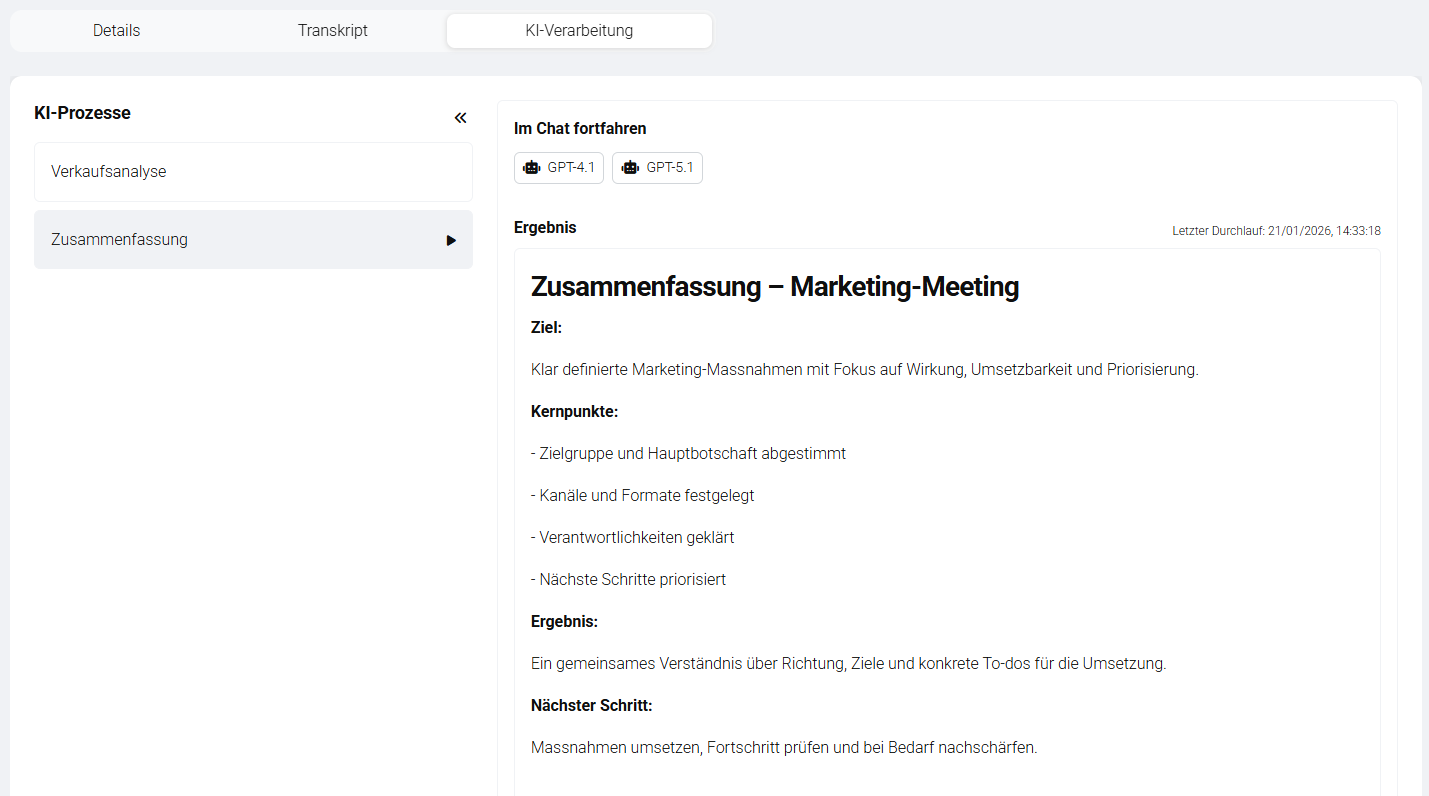
The AI Processing tab shows all defined AI processes for this recording.
AI Processes
On the left, available processing processes are displayed, such as summaries or structured reports. All processes work based on the transcript.
Automatic and Manual Processes
Depending on the configuration:
- Automatic: The process starts immediately after transcription.
- Manual: The process must be started via the play icon.
After completion, the result is displayed directly.
Chat with Processing Result
The result of an AI process can be passed to an AI agent. In this case, not the transcript but the processing result is copied into the chat. This is suitable for targeted further processing of individual content.
8. Working in AI Chat
Regardless of whether the chat was started from the transcript or from a processing result:
- Select an agent
- Content is copied into a new chat
- Switch to AI chat
In AI chat, you can:
- write or dictate
- upload additional files
- analyze, revise, or expand content
→ Detailed guide to AI Chat: AI Chat – Guide
9. Delete Recordings

Recordings can be deleted via the Recordings Overview. To do this, open the three-dot menu in the corresponding row and select Delete.
When deleting a recording, all associated data is permanently removed. This includes the recording itself (audio), the transcript, and all processing results generated from it. The deletion is permanent and cannot be undone.