Projects
Projects are structured workspaces for related files, chat sessions, and agents. They bundle content for a topic in one place and organize collaboration with the AI clearly. Technically, a project is based on a folder in the file storage, but at the same time it creates its own work context in which agents can work with the associated files, take instructions into account, and conduct project-related chats.
Projects are particularly suitable for recurring tasks, ongoing topics, or teams that want to structure content and work histories cleanly.
Availability
The Projects feature is not available to all user roles. Plus Users and Administrators have access, Basic Users do not.
Projects vs. regular chats
Not every task needs a project. This table helps you choose the right tool:
| Criterion | Project | Regular chat |
|---|---|---|
| Duration | Ongoing topic, recurring task | One-off request |
| Files | Multiple files that belong together | No or single file |
| Agent | Fixed agent with project-specific instructions | Changing agent depending on the task |
| History | Sessions stay bundled and resumable | Individual sessions |
| Team | Multiple people working on the same topic | Individual use |
What a project contains
A project bundles all components of a topic in one place:
- Agent – a fixed agent for the project context
- Instructions – project-specific instructions that control agent behavior
- Files and folders – uploaded and generated content in the project folder
- Chats – project-related chat sessions that remain assigned to the project
Agents can create, edit, or save new files directly in the project folder within the project context.
Create a project
A project is created via the Projects section in the side menu. When creating it, you define the project name (required), an optional description, and the access type. The project overview in the platform shows all created projects – from there you can open and edit an existing project or create a new one via the button in the top right.
The access type determines who can see the project: Private means the project is only visible to you. Team makes it accessible to authorized team members.
Access type cannot be changed later
The access type is set exclusively when the project is created. It cannot be changed afterwards. If content later needs to be moved to a different context, files and folders can be moved manually in the file storage.
Agent instructions in a project
Custom agent instructions can be stored for each project. This lets you define how an agent should behave within the project and what it should pay particular attention to. This is especially useful when an agent repeatedly works in a specific subject area with the same files, rules, or objectives. These instructions complement the agent's general configuration and enable topic-specific control.
Files in a project
Every project is linked to its own area in the file storage. In the project folder you can create folders, upload, organize, move, and delete files. Files can be added manually via drag & drop or through the upload function. The platform supports common formats such as Microsoft files (Word, Excel, PowerPoint), text files, and Markdown. Markdown files can also be edited directly in the Creator.
Agents can also create or edit files within the project and save new content directly in the project folder.
Chats in a project
All chat sessions conducted within a project are assigned to that project and can be viewed and continued there at any time.
A chat can be linked to a project in two ways: either you start a new chat session directly from within the project, or you select a project retrospectively in a running chat session. As soon as a project is selected in a running session, all generated files are saved in the corresponding project folder from that point on.
Select a project in chat
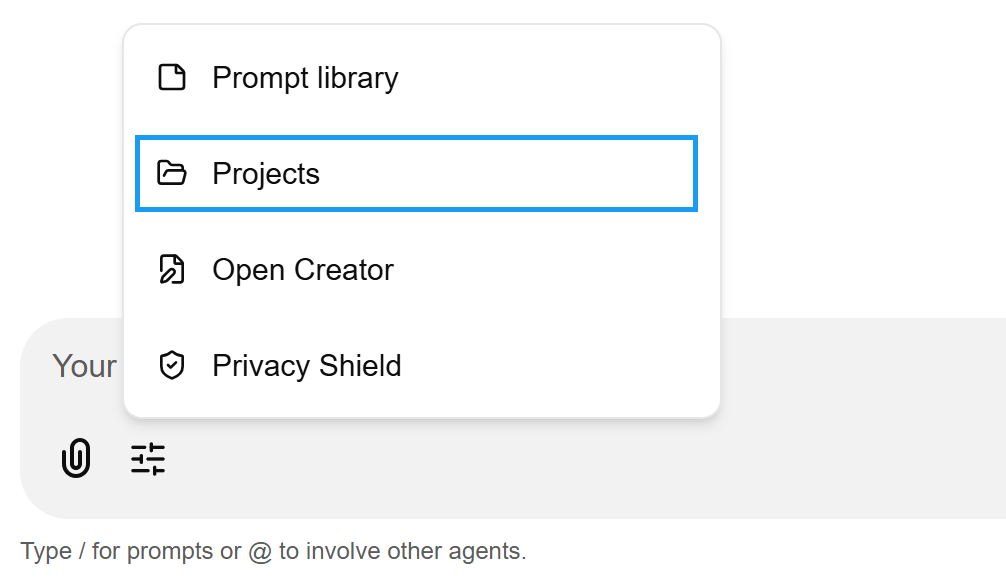
In a running chat session, you can select a project via the selection icon (configuration icon) at the bottom left of the chat input field. Click the icon and choose the desired project. As soon as a project is selected, all generated files are saved in the corresponding project folder from that point on.