Workspaces
A workspace is a dedicated work environment on the Evoya platform to which resources such as agents, data sources, and tools, as well as members, are assigned. Users switch between the workspaces they belong to via a dropdown in the header, and only see the resources of the active workspace at any time. Every organisation has at least one default workspace, to which new users are automatically added upon registration (see Authentication).
Why workspaces are useful
Workspaces can be organised flexibly to fit the organisation's needs. Two typical examples:
Organising by department Many organisations set up a separate workspace per department – for example, for Marketing, Support, or HR. Each department gets its own agents, data sources, and tools, without the areas interfering with or overlapping each other.
Workspace for sensitive data A workspace can also be used to restrict how particularly sensitive data is handled. For example, a workspace can be set up in which only certain, approved AI models are available, while other workspaces allow access to more models.
These examples show only two possible approaches – the structure can be designed freely to fit specific requirements.
Switching between workspaces
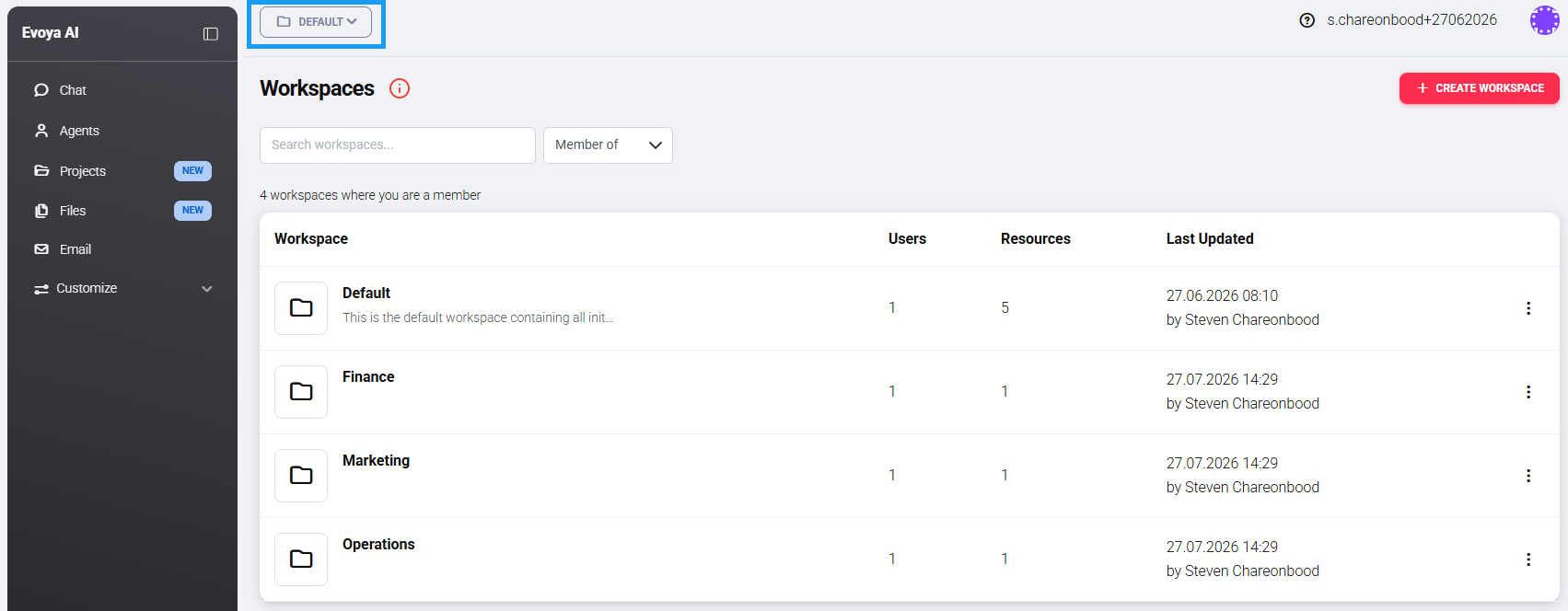
A dropdown in the platform header lets users switch between their workspaces. Only the workspaces a user is a member of are shown. After switching, the platform displays the agents, data sources, tools, and other resources of the selected workspace.
Administrators are members of a workspace by default and can remove themselves from it. This has no effect on their management rights – an Administrator can still manage every workspace in the organisation. It only affects whether the workspace appears in the dropdown.
Creating and managing workspaces
Workspaces can be created by Administrators and Plus Members – collectively referred to as Power Users (see Roles and Permissions). Basic Members cannot create workspaces.
The workspace overview lists all workspaces a person has access to. A filter lets you choose between Member of and All workspaces: Member of shows only the workspaces the person is a member of – regardless of role. All workspaces is available to Administrators and shows every workspace in the organisation, even those the person is not a member of. Administrators can manage any workspace regardless of their membership.
The button in the top right creates a new workspace. An existing workspace can be edited either by clicking its title or via the three-dot menu on the right.
Roles within a workspace
Within a workspace, separate roles apply in addition to a user's general platform role:
| Role | Description |
|---|---|
| Account Administrator | Automatically has access to all workspaces in the organisation and can manage them. Administrators are always admins in every workspace – no separate assignment is needed. |
| Workspace Administrator | Can manage the respective workspace, i.e. assign and edit resources and members. This role is assigned to individual members specifically per workspace. |
| Member | Uses the resources assigned to the workspace but cannot edit or manage the workspace itself. |
The Workspace Administrator role can be assigned to both Administrators and Plus Members, allowing them to manage the respective workspace independently. Account Administrators do not need this assignment – they already have full access to every workspace.
Related topics
- Roles and Permissions – the general platform roles Administrator, Plus Member, and Basic Member
- Access Types – how the Team access type controls the visibility of resources within a workspace
- Product Access – which products and modules are available