Configuration
The configuration page controls how transcripts are processed and which integrations are active for recordings. You can reach it via the settings icon in the top right of the recordings page.
The configuration page is divided into two tabs:
- Settings – AI processes, presets, transcription context, and chat agents
- Integrations – calendar connection and bot settings for online meetings
Tab: Settings
AI Processes
An AI process defines what happens with a finished transcript. Processes apply regardless of whether the recording is an in-person conversation or an online meeting.
When creating a process, you define:
- Trigger: Whether the process starts automatically after each recording or is triggered manually by you
- Agent: Which AI agent processes the transcript
- Prompt (optional): An additional instruction for the agent – what it should do and how. Alternatively, the instruction can be stored directly in the agent; the prompt field then complements it
You can create as many processes as you like and switch between manual and automatic at any time. The underlying idea: not every AI process should run on every transcript. Automate recurring evaluations, and keep rarely used processes available as manual options – like a library you start from on demand.
| Automatic | Manual | |
|---|---|---|
| Start | Right after the transcript is finished | Via click on the recording detail page |
| Result | Shown immediately in the Results tab | Shown after manual start |
| Typical use | Processes that should run on (almost) every recording, e.g. a standard summary | Processes only needed occasionally – you build up a library and start them on demand |
Example: You create a process "Meeting Minutes" with the trigger Automatic, an agent for minutes, and the prompt: "Summarize the conversation in at most five points, then list all agreed tasks with their owners." After each recording, the minutes are ready automatically – without you having to click anything.
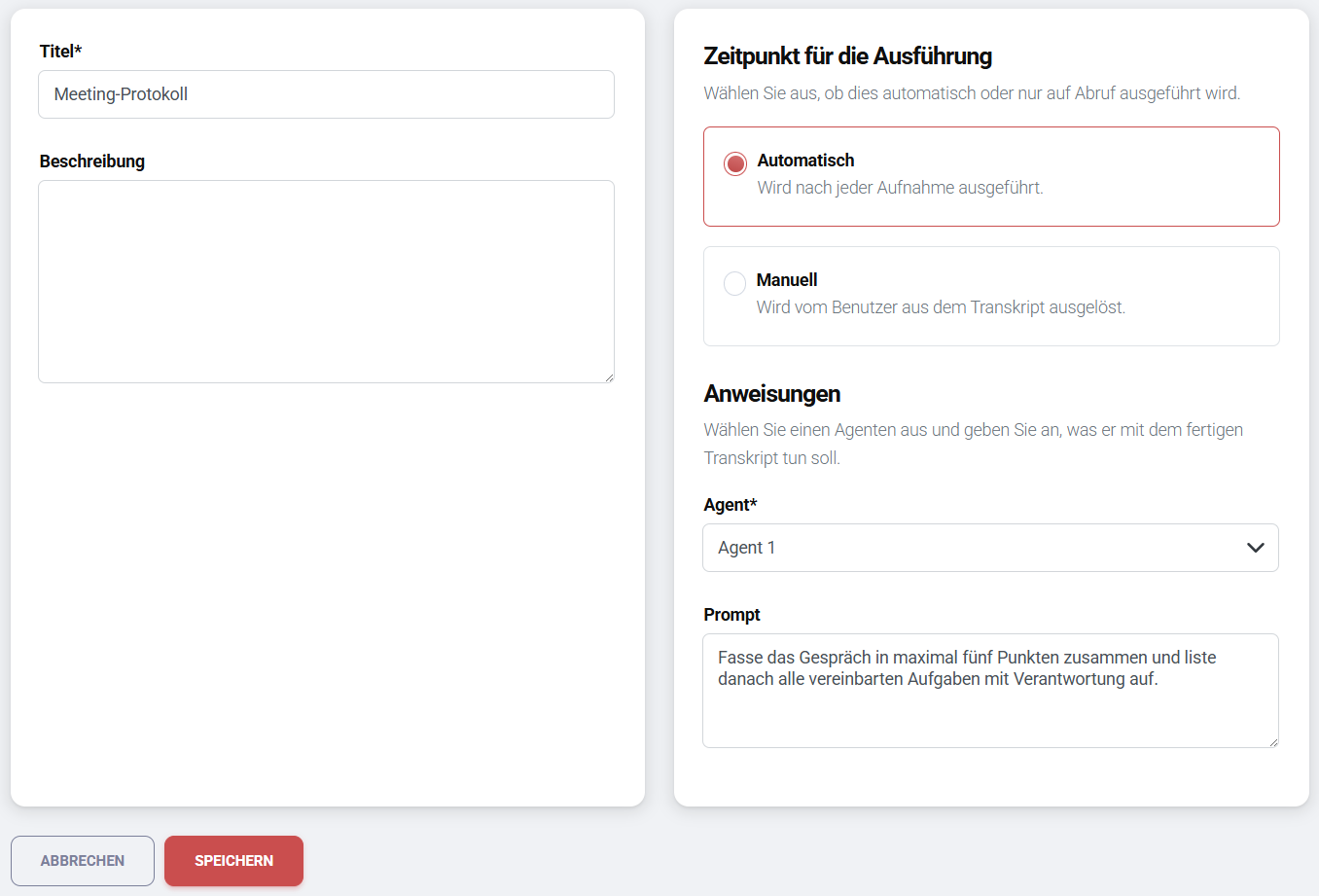
Results appear on the recording detail page in the Results tab. There you can edit results and continue working on them dynamically with an agent via Continue in chat (see Chat agents).
Presets
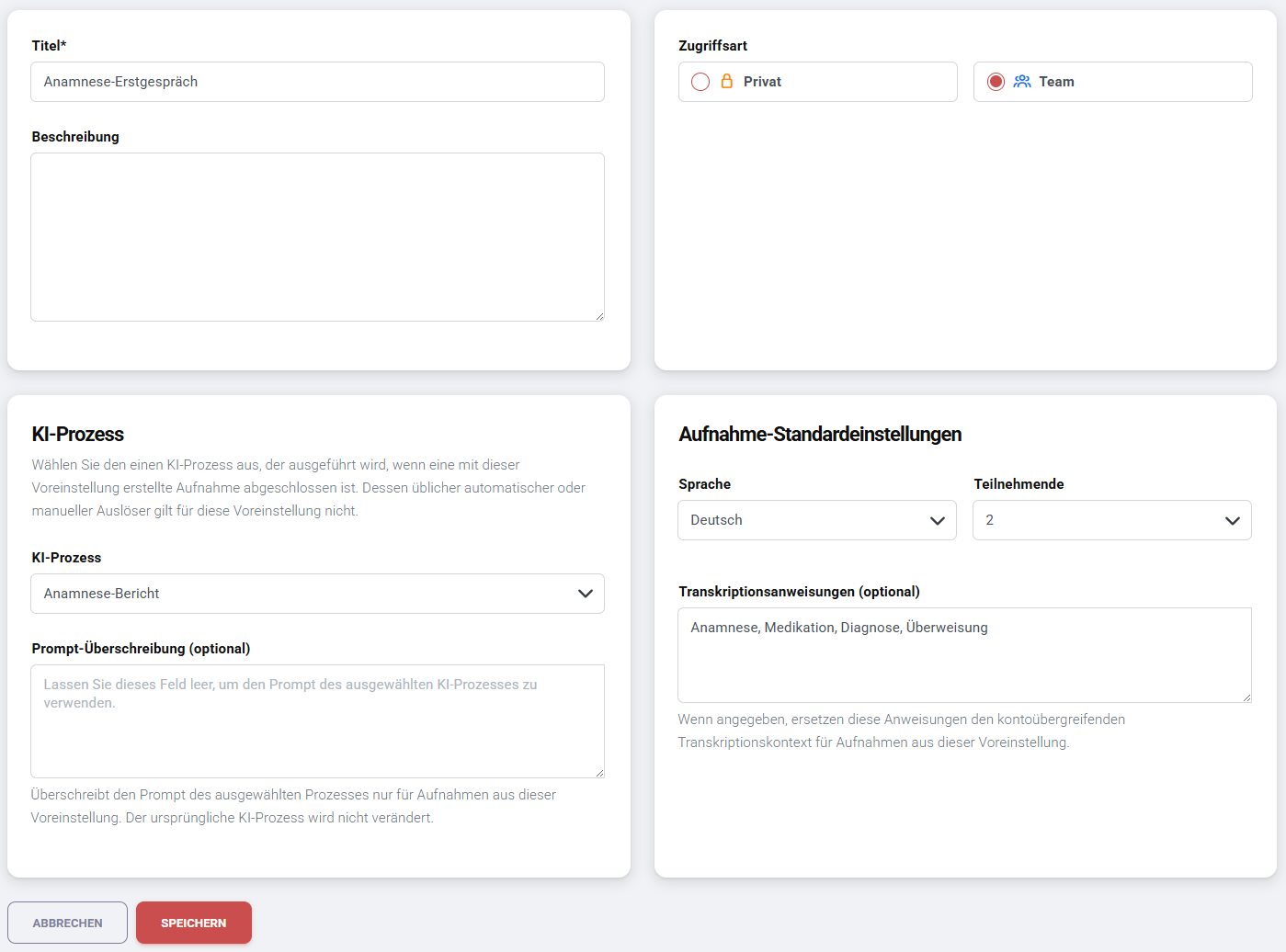
Presets are templates for in-person meetings. They appear in the recording pop-up when you click Record and automatically apply the stored configuration.
When creating a preset, you define:
- Title and description
- Access type: Private or Team (see Access types)
- AI process: Exactly one existing AI process that is applied for this template. What the process actually does is defined in the process itself or in the executing agent
- Language and participants (optional)
- Transcription instruction (optional): Additional context for the transcription model, e.g. technical terms from your industry or company. This serves exclusively to improve transcription quality – it is not an instruction to the AI agent
Precedence of the transcription instruction
A transcription instruction defined at preset level overrides the account-wide transcription context, if defined.
Example: A practice creates the preset "Anamnesis Initial Consultation": access type Team, the AI process "Anamnesis Report", language German, and a transcription instruction with terms like "anamnesis, medication, diagnosis, referral". At the next initial consultation, the doctor simply selects this preset in the recording pop-up – everything else runs automatically in the familiar structure.
Transcription Context
Here you can optionally store additional context that is passed to the transcription model to improve accuracy – such as names, technical terms, abbreviations, or product names.
Example: A tax advisory firm stores: "VAT, ESTV, AHV, withholding tax, tax return, deduction, bookkeeping, fiduciary". This way the transcription model reliably recognizes the technical terms instead of misspelling them (e.g. "Emma West" instead of "VAT").
The transcription context applies account-wide and is added to every transcript. If a preset defines its own transcription instruction, it overrides the account-wide context for recordings using that preset.
Chat Agents
This section lists all AI agents in the workspace with the access type Team (private agents are not shown). You activate or deactivate individual agents via toggle.
This selection controls which agents are offered in two places on the recording detail page:
- Results tab: Via the Continue in chat button (top right) you continue working in the chat with the result of an AI process – e.g. a summary
- Transcript tab: Via Chat with transcript, the entire transcript is passed to the selected agent
Only activated agents appear in these selection lists.
Tab: Integrations
The Integrations tab concerns online meetings only.
Connect calendar
Click Connect to link your calendar. A pop-up for authentication (OAuth) opens, where you confirm access.
Bot settings
- Join rule: Define when the bot joins a meeting – e.g. always or only when you are the meeting organizer
- Display name: Give the bot a name under which it appears in the meeting, e.g. "Notetaker of Max Muster"
Related pages
- In-Person Meetings – start on-site recordings and detail view
- Online Meetings – record virtual meetings
- AI Agents – create and configure agents