Inbox Setup
To use the Email feature, you first connect a mailbox to the Evoya platform.
Connect mailbox
- Open the Mailbox and Task Overview.
- Click Add Mailbox.
- Enter the email address, IMAP username, IMAP password, and IMAP and SMTP server information.
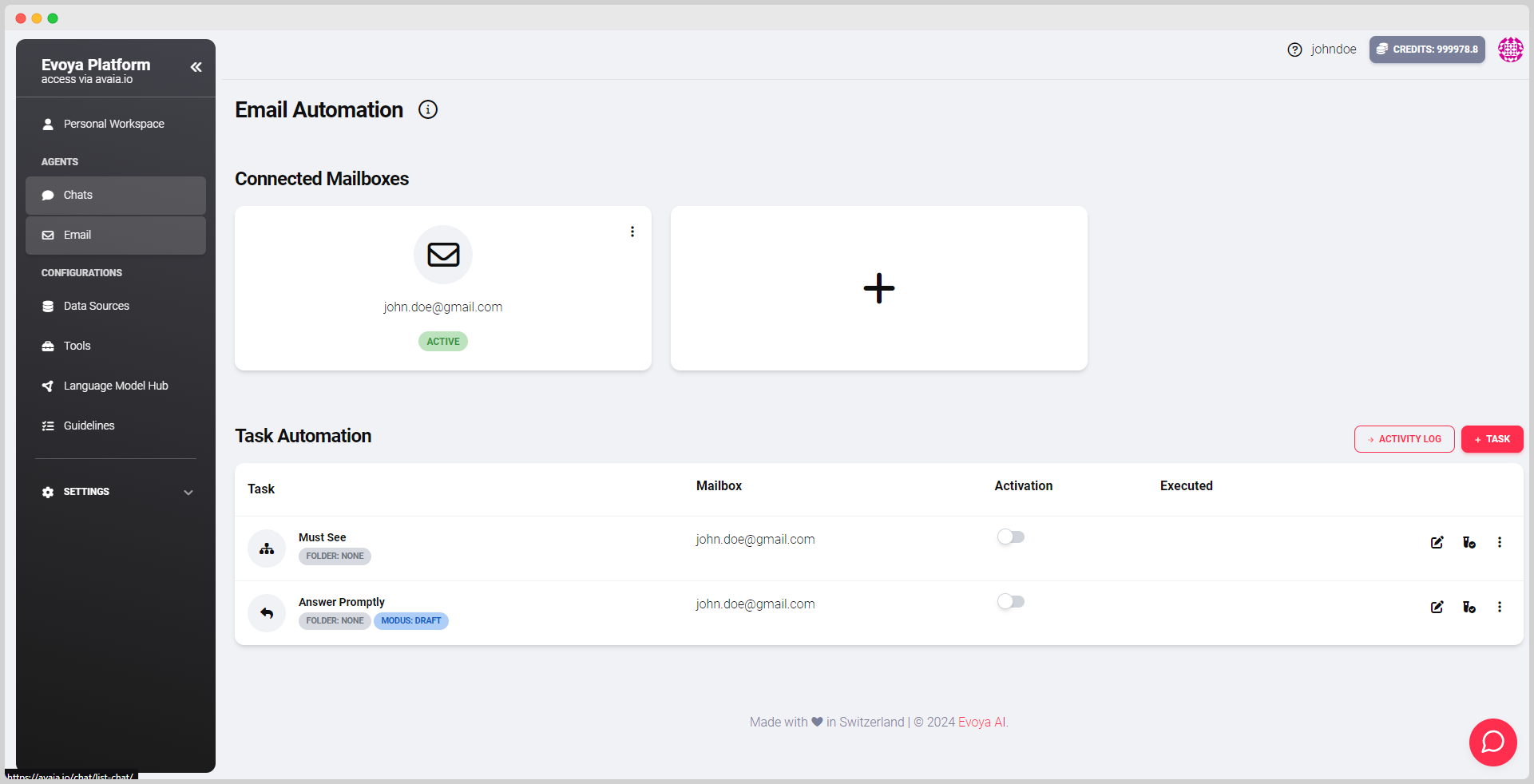
After connecting, you can see all connected mailboxes and existing automation tasks in this location.
Manage tasks
Via the task overview you can create new automation tasks (+ Task) and toggle existing ones on or off. Two task types are available:
- Email Categorization – automatically classify emails
- Email Response – automatically respond to emails
Use templates
If you do not want to create a task from scratch, you can use existing templates on the Task Creation Page. Select a template, customise it if necessary, and save the task.
Activity log
Via the Mailbox and Task Overview you can access the Activity Log. It shows which emails have been categorised or responded to and what actions have been automatically performed. Direct access also via this link.
Related topics
- Introduction – what the Email feature offers
- Email Categorization – automatically classify emails
- Email Response – automatically respond to emails