Email Response
With email response, incoming emails are automatically answered by an agent. You define which agent responds, in which mode replies are sent, and which additional instructions the agent should follow.
Configuration
In the first section, you define the basic settings for automatic email response.
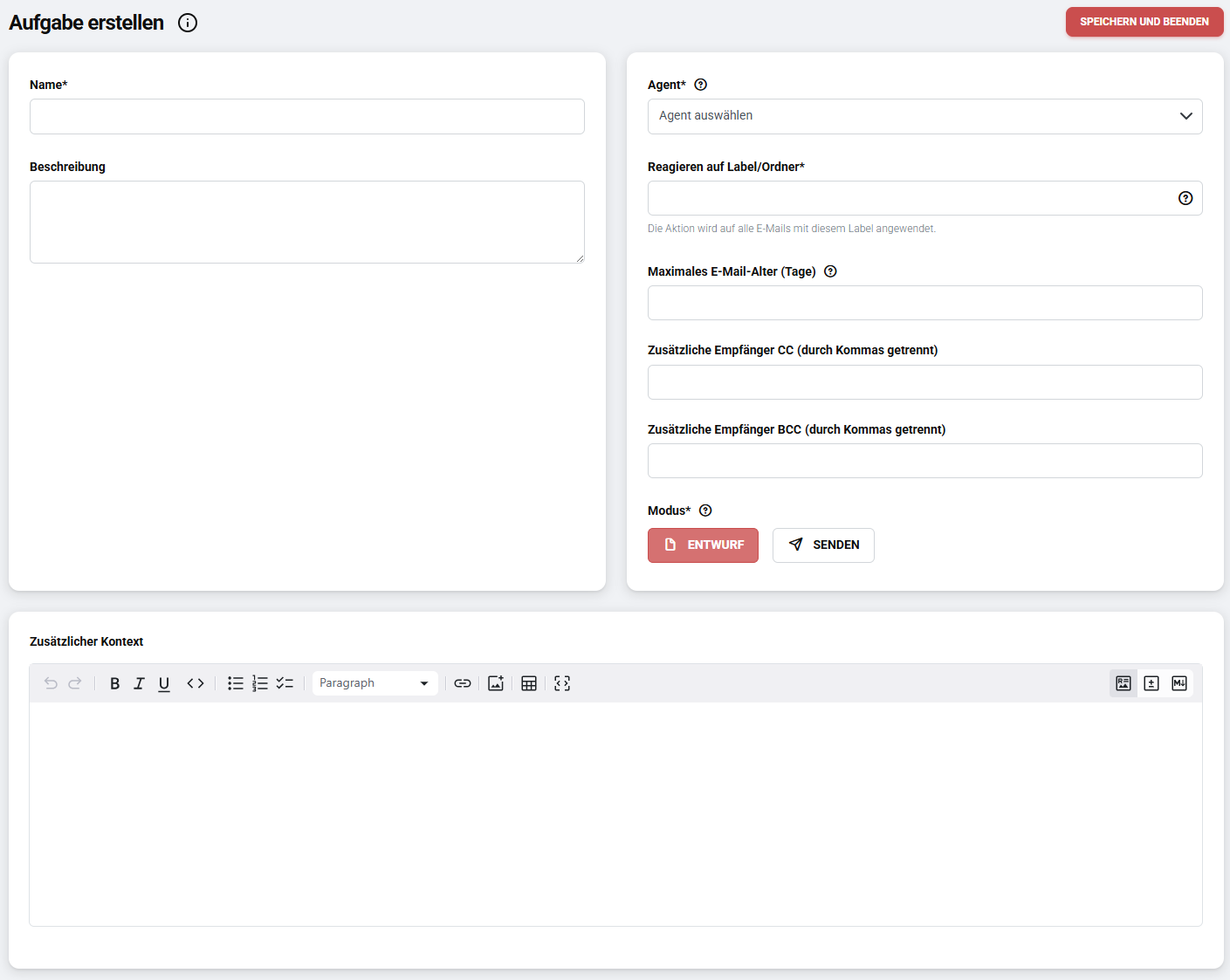
- Name – the name of the configuration.
- Description – optional, for internal documentation.
- Select agent – determines which agent writes the reply.
- Reacts to label/folder – determines which label or folder emails are processed in. In Gmail these are labels, in Outlook folders.
- Maximum age – defines how far back emails are considered for response.
- CC/BCC – optional recipients for copies of the reply.
- Mode – choose whether replies are saved as draft or sent directly.
- Additional context – additional instructions for the selected agent.
Select agent
A key advantage is the selection of the agent. This lets you control not only how replies are worded, but also what the agent can access. Depending on the configuration, an agent can be connected to data sources, internal documents, or additional tools. This way it can, for example, draw on internal knowledge sources and formulate email replies more precisely and with higher quality.
This is particularly valuable for recurring tasks, such as general inquiries to info, support, or contact mailboxes. Combined with email categorization, incoming messages can first be sorted automatically and then answered by matching agents.
Testing
In the second section, you test whether the email response works as intended.
Paste any email into the input field and click Save and Test. Below the input field, the reply generated by the agent is displayed. This lets you quickly verify that the selected agent and the additional instructions produce the desired replies before activating the task.
Related topics
- Inbox Setup – connect mailbox and manage tasks
- Email Categorization – automatically classify and forward emails
- Introduction – what the Email feature offers